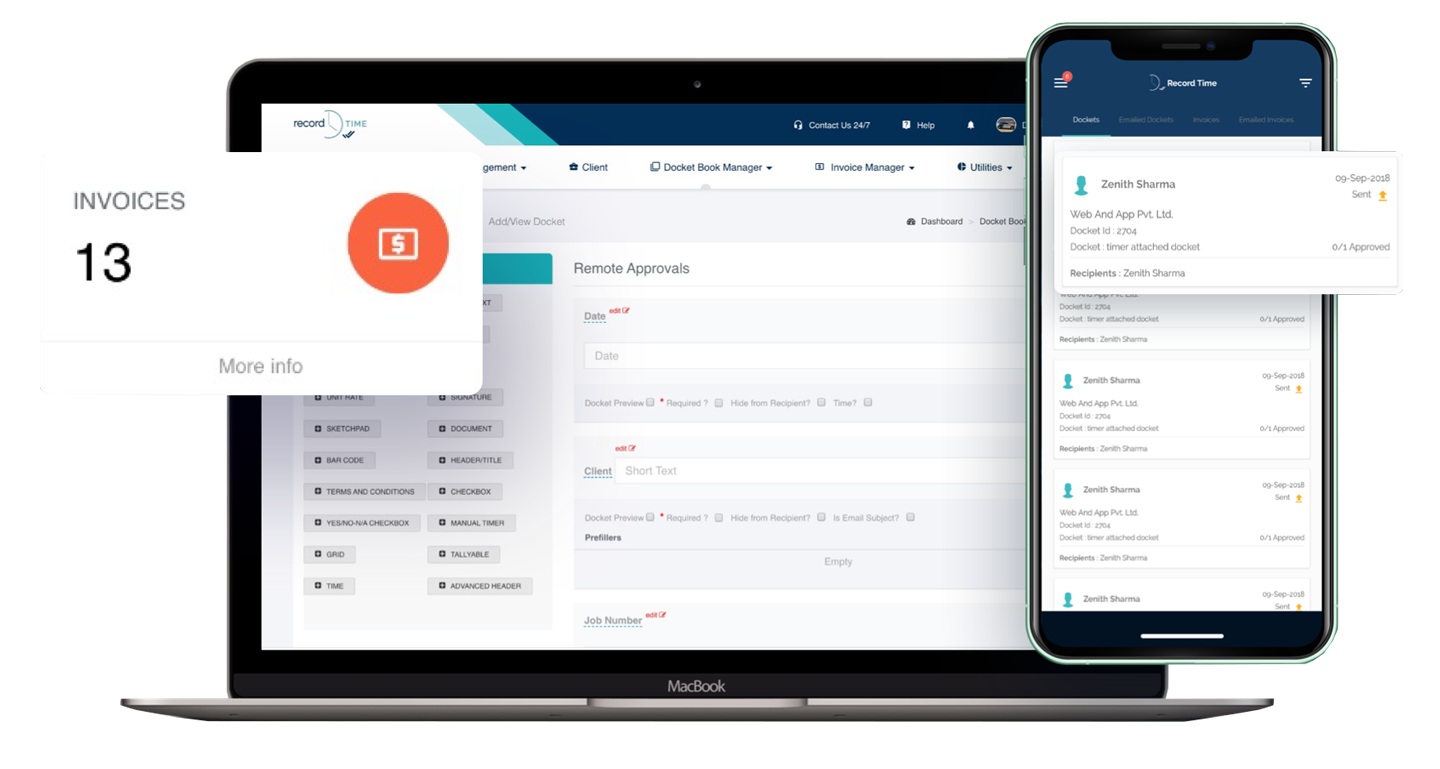
Custom Invoice Book : Detailed Online Invoicing
Are you exhausted from dealing with the hassle of traditional invoicing? Do you often feel overwhelmed by paperwork and find it challenging to manage your receipts? Look no further than Record Time! Our cutting-edge online invoicing feature organises your custom invoice book and improves your professional standing.
Record TIME offers a unique and customisable invoicing solution that goes beyond the limitations of standard formats. With our software, you can create invoices that are tailored to your needs, allowing you to provide comprehensive details about the services or products you’ve provided. In addition, you can include digital dockets and images to make your invoices more informative. Whether you’re a freelancer, small business owner, or contractor, Record TIME empowers you to generate invoice books with clarity and organisation, eliminating any potential for confusion or ambiguity.
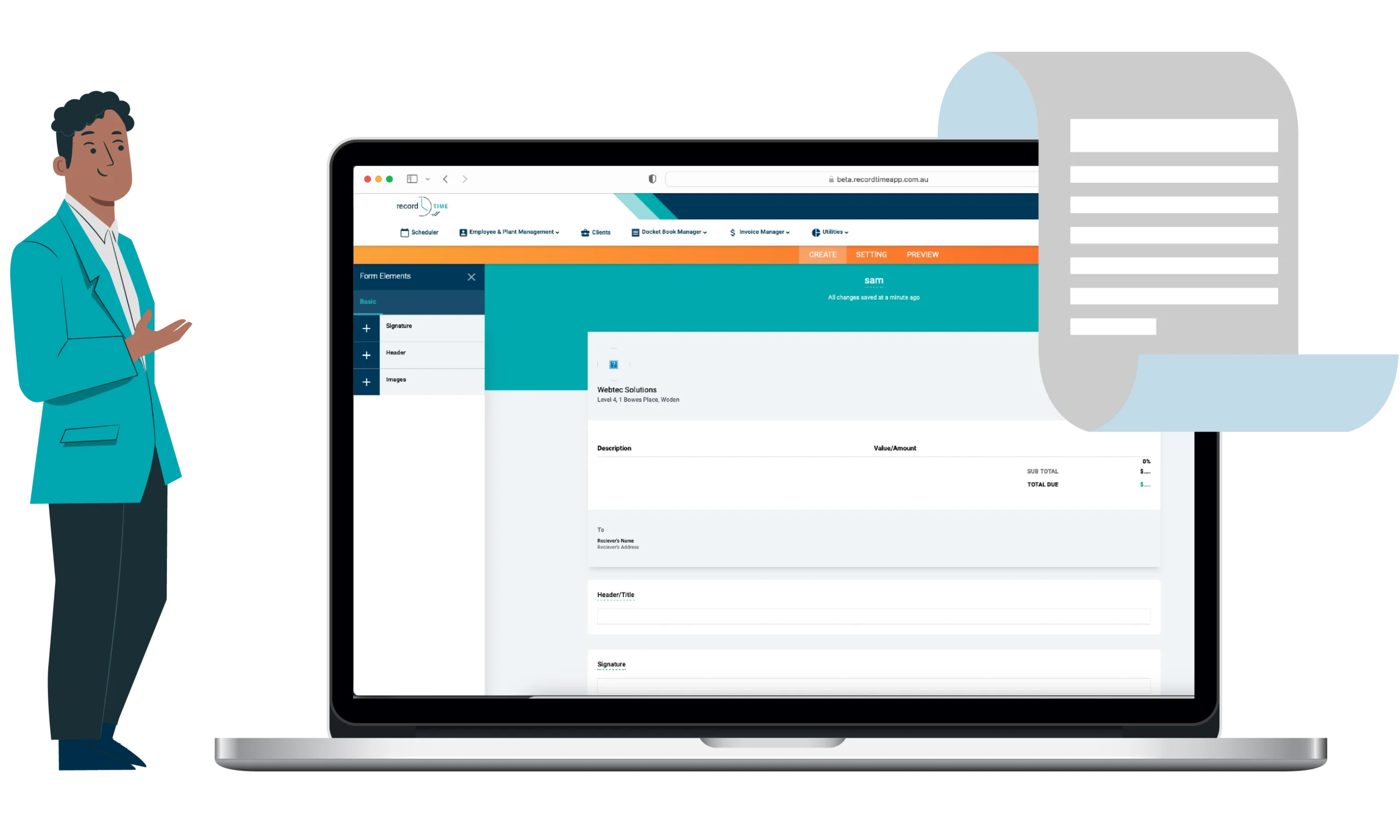
The Power of Visuals: Adding Images to Your Invoice Books
Record Time takes online invoicing to the next level by utilising the strength of images. Have you ever wished you could attach relevant photos to your invoices? Our custom invoicing feature makes it simple to include pictures that support your personalised invoice, highlight completed projects, or provide proof of any repairs or maintenance work. Additionally, this level of transparency and professionalism makes a lasting impact on your clients.
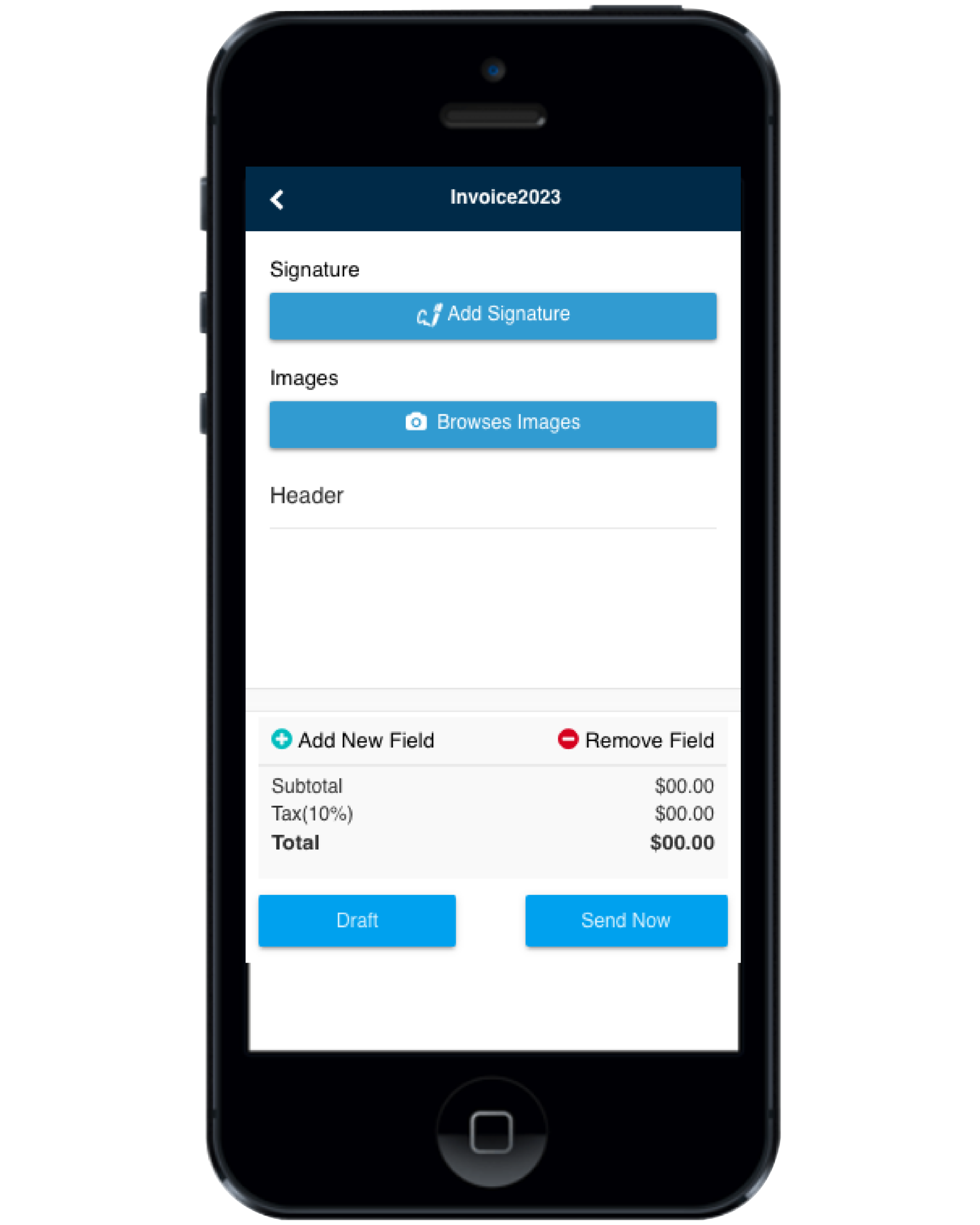
Build Trust and Security for Your Custom Invoice Book with Electronic Signatures
Getting approval and acknowledgment signatures is one of the most time-consuming steps in the billing process. Record Time simplifies this process with its smooth digital signature feature integrated into its invoice template. Moreover, clients can digitally sign bills right from their devices, eliminating the need for physical paperwork and speeding up the entire invoicing process. Say goodbye to the hassle of chasing signatures and welcome a faster, more effective way of conducting business.
Seamless Integration with Xero Accounting
Record TIME is an innovative business management software and it incorporates Xero Accounting. It provides users with a seamless experience when it comes to managing their invoices. Moreover, this integration allows Xero Accounting users to easily access and view the invoices created within Record TIME directly from their Xero account. Furthermore, users can access their financial data in one place thanks to the smooth interface between Record TIME and Xero.
How to Design a Custom Invoice with Record TIME?
Step-1
-
First, Visit www.recordtimeapp.com.au
-
Go to the invoice Manager section within the software
-
Create your own invoice tempaltes using the template designer
-
If necessary, add the photo field to the invoice
-
Add a signature field to the template to provide a personalised touch
Step-2
-
Access the invoice Manager section again
-
Click on the option to create a new invoice
-
Select a person within the Record TIME system if the customer's information is alreadu stored in the systerm or choose the custom email option to enter the recipient's email address manually
-
Attach any digital dockets related to the transaction
-
Finally, once everything is ready, click the "Send" button to deliver the invoice to the customer
Check out our mobile apps
Download the Record TIME App Today: